Unit Home
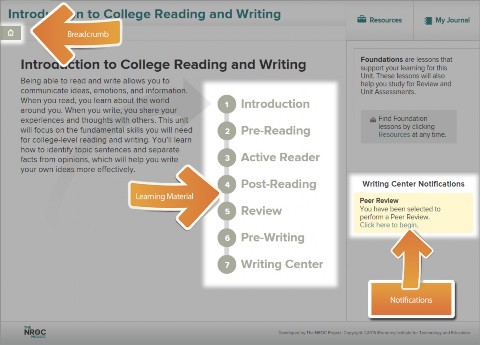
Unit Home gives a description of the concepts covered in the unit. The breadcrumb at the top shows your location within the course. Select the house icon to return to the Unit Home at any time. You’ll also see that the learning material is divided into a series of integrated reading and writing experiences labeled 1 through 7. Starting with the unit Introduction, you will move from one activity to the next to complete all seven activities. Unit Home also provides Writing Center Notifications. They appear when you have been assigned to review another student’s writing or if someone has completed a review of your writing.
Resources
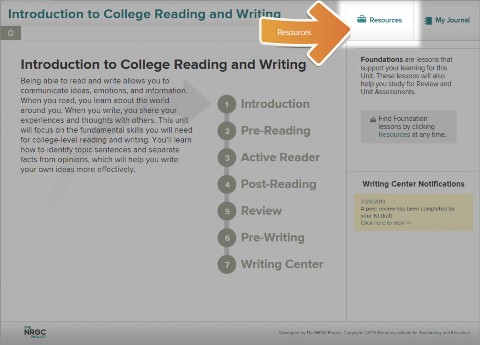
Resources are available in the top right-hand corner at all times.
Resources
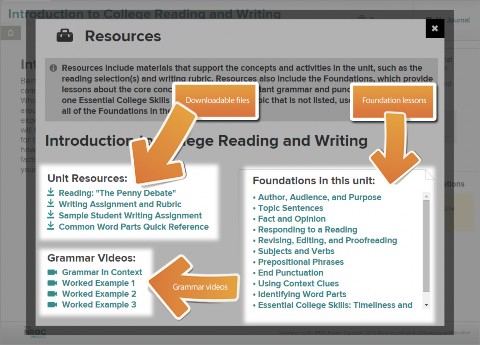
Here you can access a downloadable copy of the unit reading selection, the writing assignment and rubric, and other resources. You can access grammar videos that demonstrate some of the concepts in the unit foundations. Also located in Resources are the Foundation lessons, which review core concepts discussed in the unit and important grammar and punctuation information.
My Journal
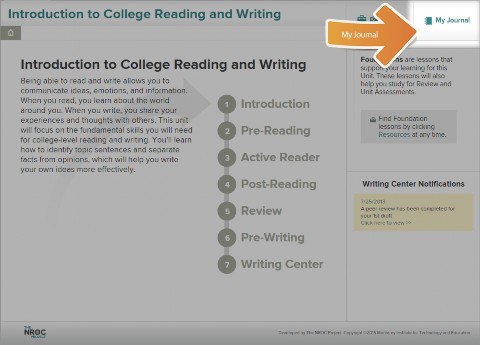
My Journal is also available in the top right-hand corner at all times.
My Journal
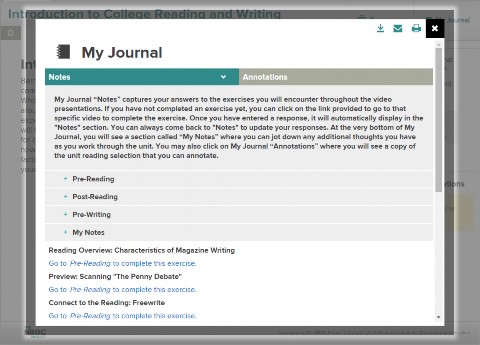
My Journal captures your answers to questions throughout the video presentations, and it allows you to annotate the unit reading selection.
Everything in My Journal is saved and can be reviewed and revised at any time, and will be the staring point for your work when you begin your writing assignment.
Introduction
Each unit begins with a short video introduction to the unit theme. The Introduction also provides you with an overview of the reading selection and writing assignment.
Navigation in Videos
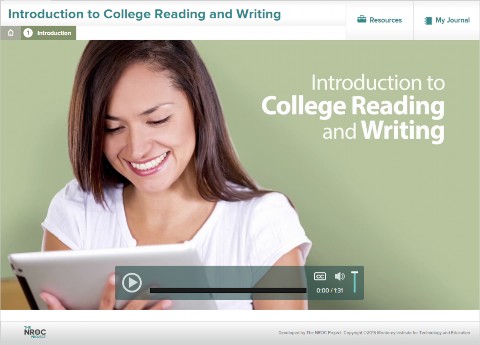
All video presentations in the course feature common controls:
Pause/Play allows you to review the material at your own pace.
Clicking CC displays text for Closed Captioning.
The slide meter allows you to raise or lower the audio volume.
Pencil icons indicate the exercises that will automatically appear throughout many of the video presentations to practice what you have learned—don’t click the icons before watching the video. All of your responses to these exercises are saved in My Journal.
To make the controls appear or disappear, move the cursor on or off the video presentation.

Pre-Reading
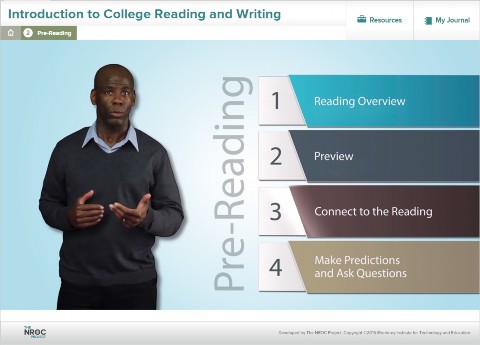
The Pre-Reading presentation describes strategies for becoming familiar with the reading before you even read it.
Keep in mind that while each presentation provides a quick look at the unit reading(s), you’ll be able to apply the pre-reading strategies when you read on your own in the Active Reader.
Active Reader
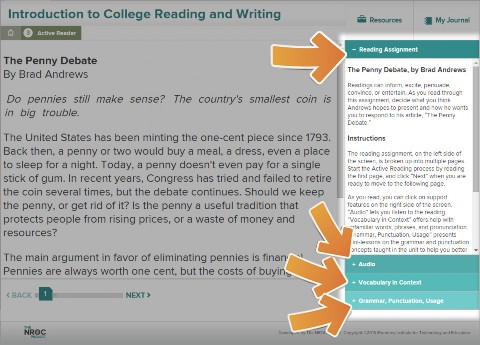
Here you’ll see the unit reading broken into pages with self- assessment questions at the end of each page to help you evaluate how well you understand the content.
The Active Reader also provides other features to support your learning:
-
The reading assignment with instructions on how to use the Active Reader.
-
A read along audio feature that highlights each word as it is read.
-
Highlighted vocabulary words and phrases in the reading that might be unfamiliar to you. You can hear the word pronounced, work through questions to figure out the meaning yourself, and look at the definition of the word as it is used within the context of the reading.
Grammar, punctuation, and usage lessons that show mini-tutorials covering unit-related grammar concepts.
Post-Reading
In the Post-Reading presentation, you’ll learn how to review, discuss, and reflect on the reading to become a strong critical thinker and writer.
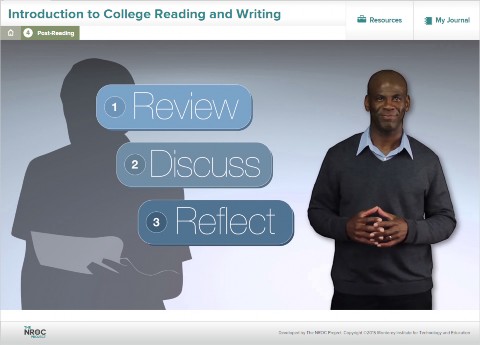
Review
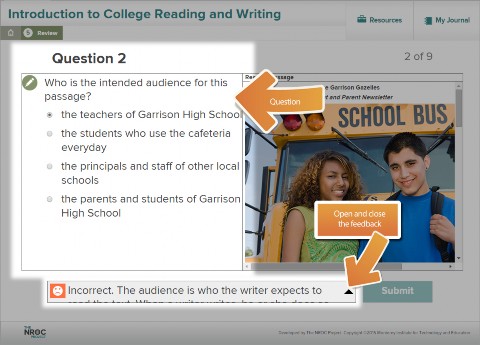
The Review is a short series of questions to help make sure you are on track for the unit. If you answer a question incorrectly, you can close the feedback and try again by selecting a different answer. Once you complete all of the questions about the unit content, you’ll see a performance summary screen with links to any material you should review.
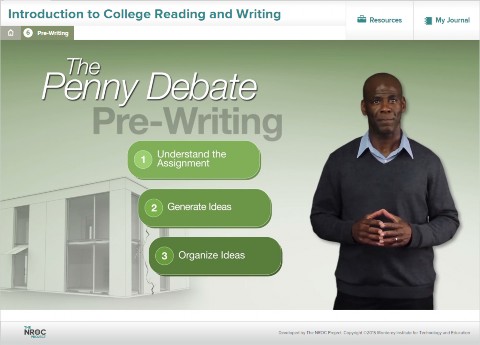
Pre-Writing
Pre-Writing introduces the unit writing assignment and models strategies that help prepare you for writing through a series of exercises.
Writing Center
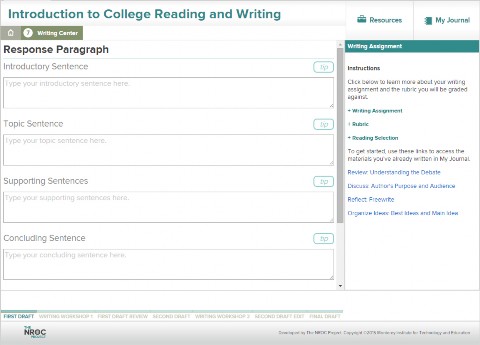
The Writing Center is where you will work on your unit writing assignment. The exercises you completed during the presentation videos are stored in My Journal and will become the starting point for your writing assignment. As you move through the writing process, you’ll see Writing Workshop videos that guide and support your writing efforts—from first to final draft.
Tracking Progress in the Writing Center
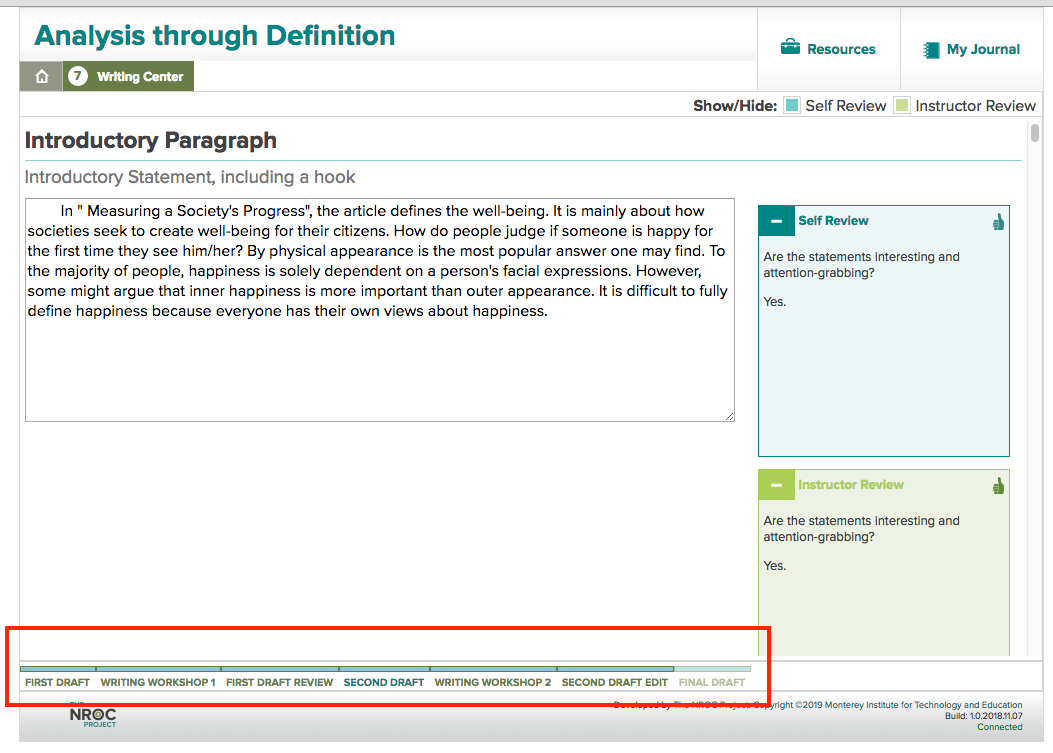
The Writing Center guides students through seven steps of the writing process: First Draft, Writing Workshop 1, First Draft Review, Second Draft, Writing Workshop 2, Second Draft Edit, and Final Draft.
As the student moves through each step, his or her progress is tracked in the breadcrumb area at the bottom of the Writing Center screen, with each step's name and progress bar becoming darker upon completion of that step. Students are able to move back to previous steps in the process, but cannot skip ahead; they must complete the steps sequentially.
Accessibility
Additional notes on the Accessibility features of the product may be found here.
Copyright ©2019 The NROC Project